
You can adjust the brightness to your preferred level.
-

- Recording
- Manual Recording
-
Adjusting Brightness
Adjusting Brightness
Select the Manual recording mode.
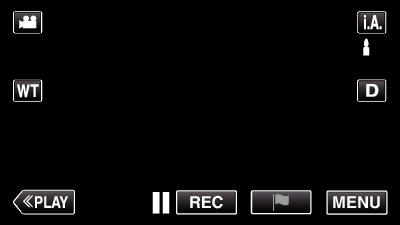
If the mode is  Intelligent Auto, tap on the recording screen to display the mode switching screen.
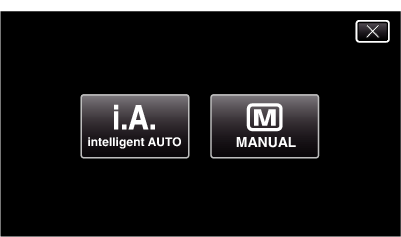
Tap  to switch the recording mode to Manual.
Tap “MENU”.
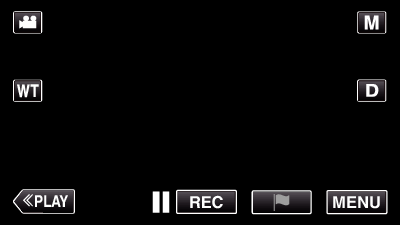
The top menu appears.
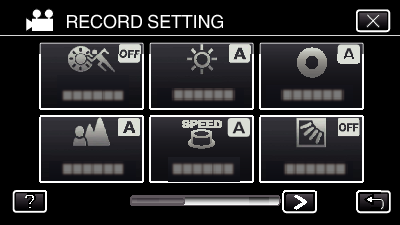
Tap “RECORD SETTING”.
_UJDCILmpidhcjd.png)
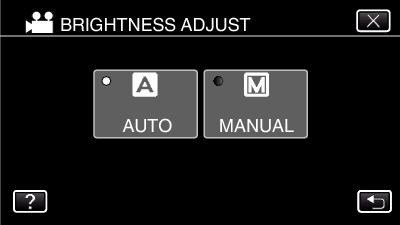
Tap “BRIGHTNESS ADJUST”.
Tap  to exit the menu.
Tap  to return to the previous screen.
Tap “MANUAL”.
Adjust the brightness value.
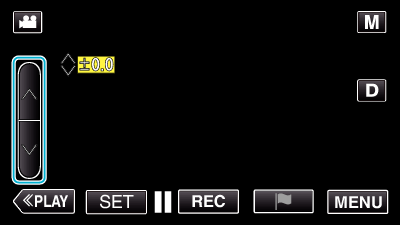
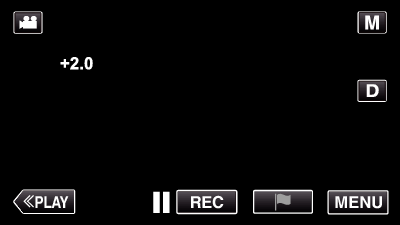
Compensation range: -2.0 to +2.0
Tap  to increase the brightness.
Tap  to decrease the brightness.
Tap “SET” to confirm.
Memo
Settings can be adjusted separately for videos and still images.