
Unable to connect using the multipoint (connect the second device)
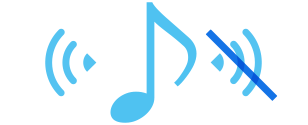
*Multipoint is a function to answer incoming calls from two devices. You cannot connect 3 or more devices at once.
First, check whether the first device is properly connected.
With both this unit and the device turned on, check that the first device is properly connected.
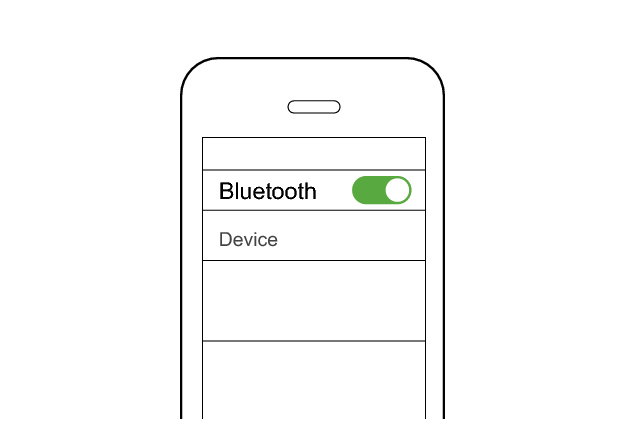
First Device
JVC WOOD masterpiece
Connected already
Select the state after checking
Connect to the second device.
Follow the steps below to check whether connection can be established.
Connecting to the second device
-
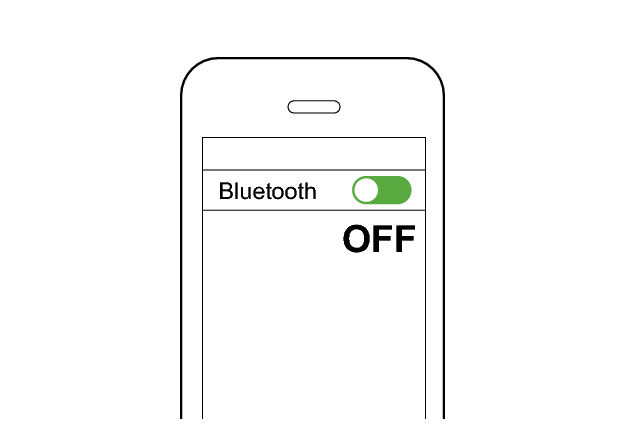
Set the Bluetooth setting of the first device to “OFF”.
-
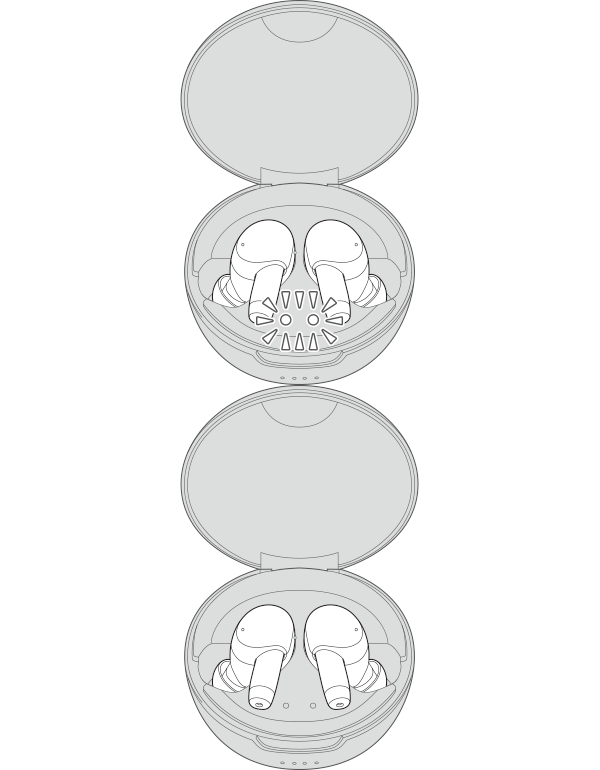
Place the earphones in the charging case.
-
Touch and hold the touch sensor on both the L (left) and R (right) earphones for about 5 seconds.
-
Pair the System with the second BLUETOOTH device.
-
Take out both earphones from the charging case and wear them in your ears.
-
Set the Bluetooth setting of the first device to “On”. If it is not reconnected automatically, select this earphone unit again.
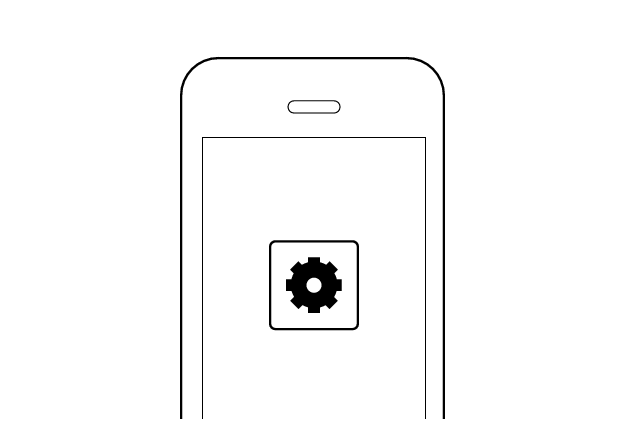
First Device
The indicators for the earphones light up.
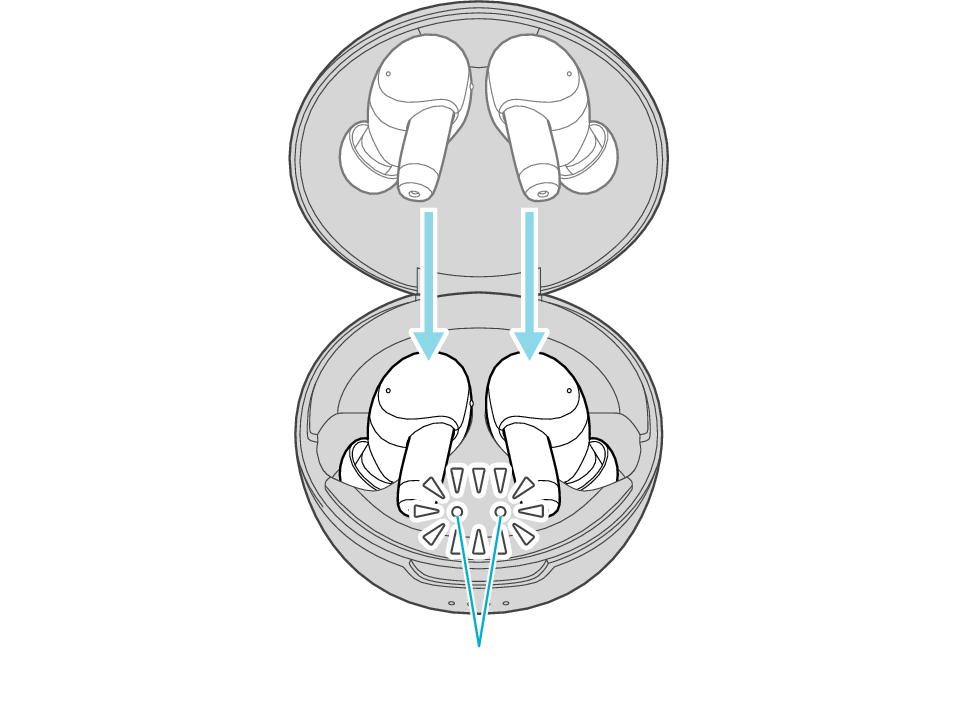
Indicators for the earphones
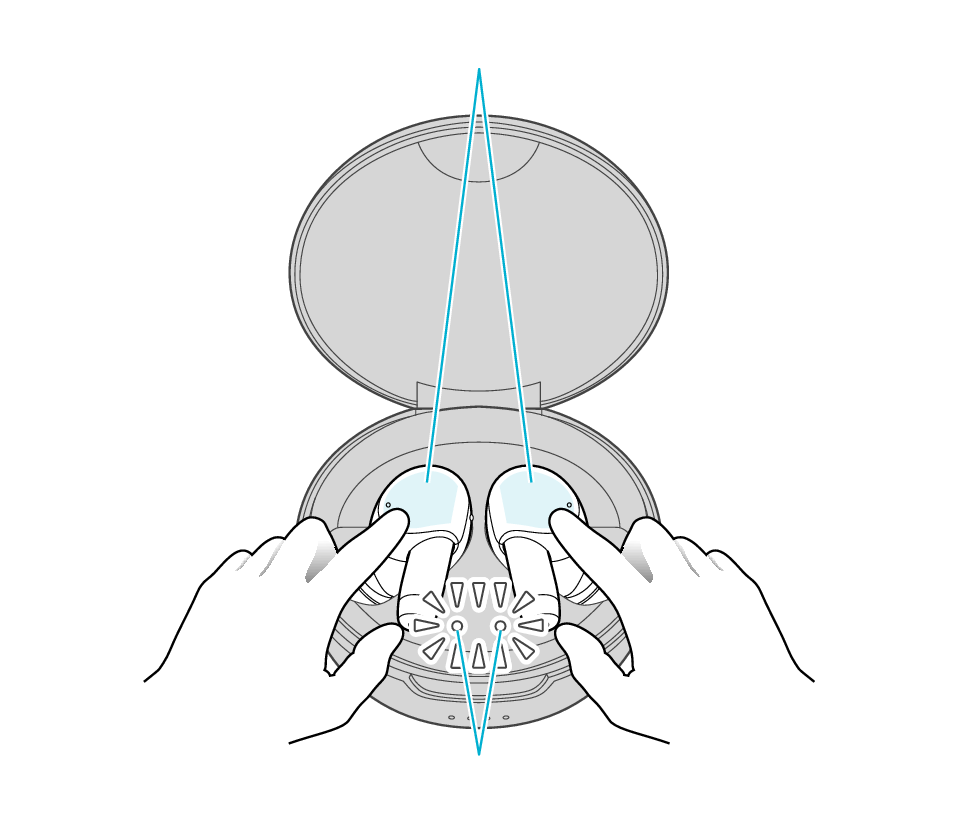
Touch sensor area
Indicators for the earphones
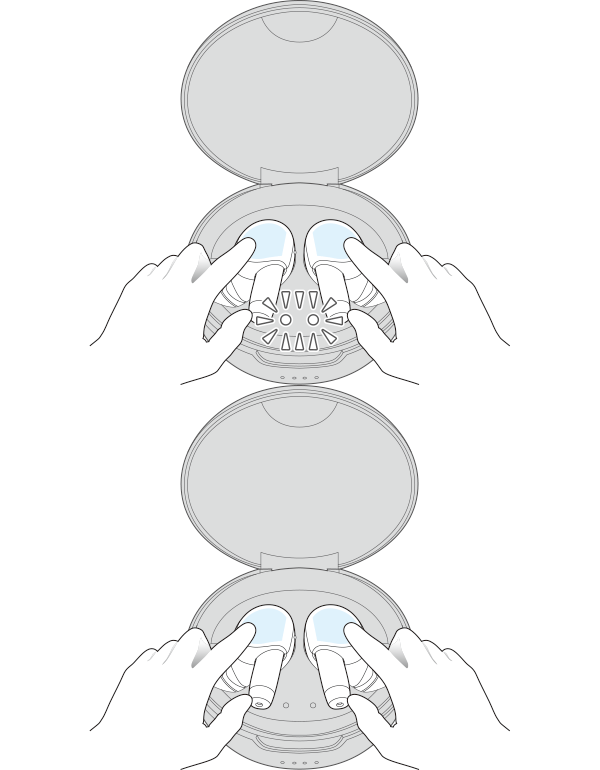
Both L and R indicators for the earphones flash quickly and repeatedly, indicating that they are in the pairing mode.
If the indicators for the earphones do not flash quickly, close the lid of the charging case, open it again, followed by tapping and holding the touch sensor on both the L (left) and R (right) earphones for about 5 seconds.
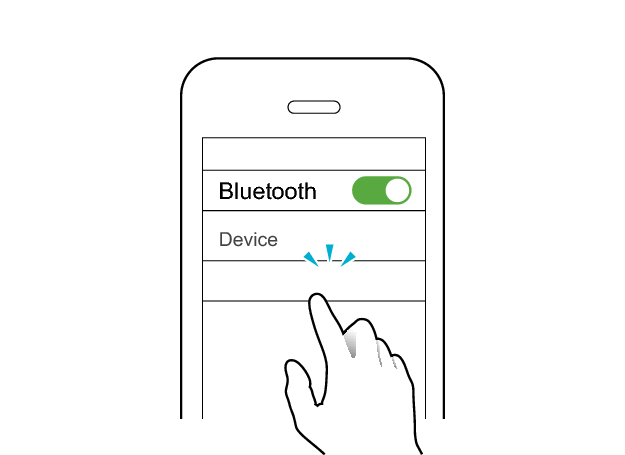
Second Device
JVC WOOD masterpiece
When connection is established, the L and R indicators for the earphones will start to flash slowly.
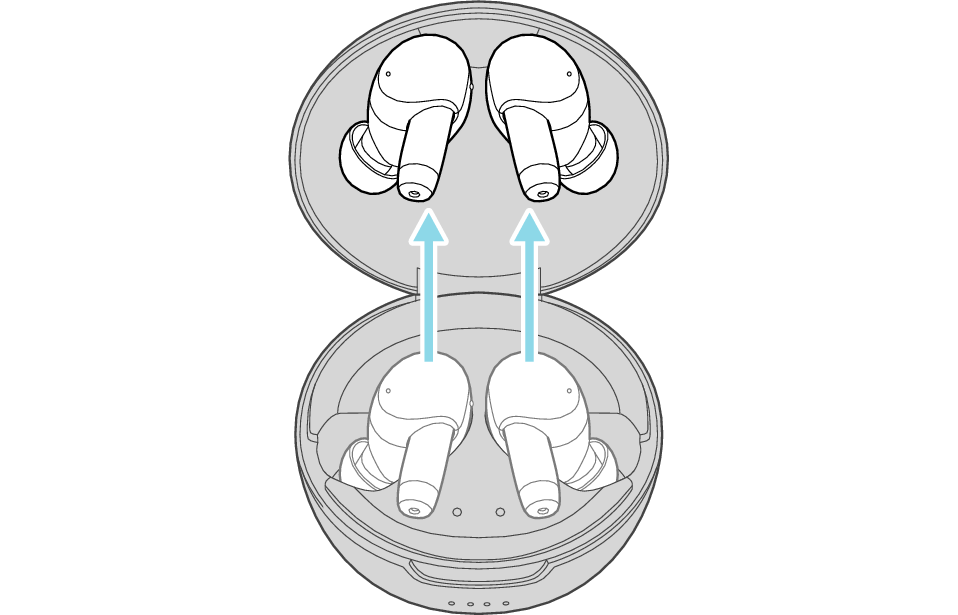
First Device
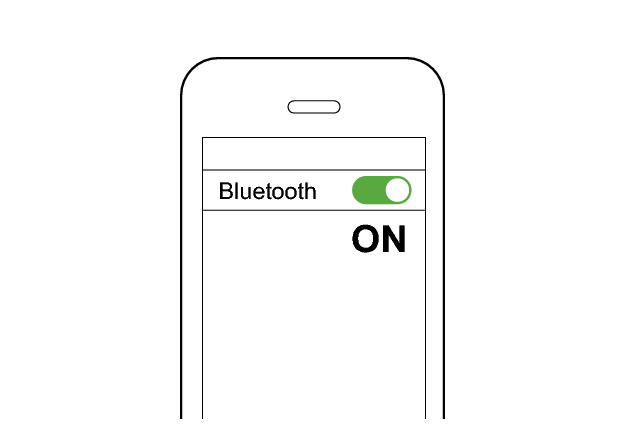
When the connection with two devices is complete, you will hear “Device Two Connected”.
Check whether “Connected already” is displayed on both devices.
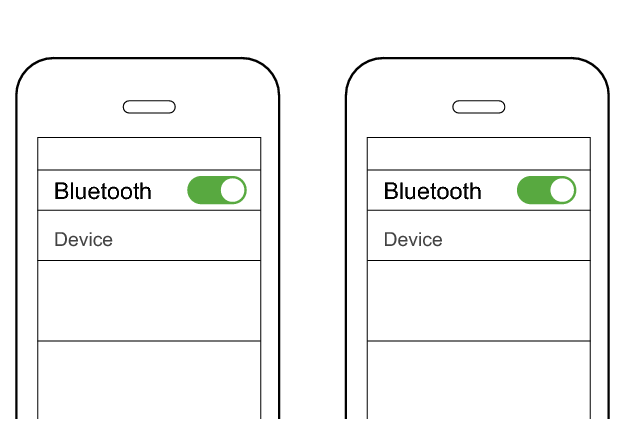
First Device
Second Device
JVC WOOD masterpiece
JVC WOOD masterpiece
Connected already
Connected already
Select the state after checking
Connection is complete.
Thank you for using Troubleshooting Guide.
Perform the operations again from the start.
Check here to repeat the operations >>
If you are unable to connect even after repeating the operations, follow the steps below to check whether connection can be established.
Initializing
First of all, go to the Bluetooth settings of the device to be connected and delete the information of this unit that is registered on it.
Charge the charging case beforehand.
Remove the earphones once if they are inserted into the charging case.
Follow the steps below to initialize the settings of both the L and R earphones at the same time.
-
Insert the earphones into the charging case
-
When the indicators for the earphones are lit, tap the touch sensor area on both L and R earphones at the same time 6 times in a row.
-
While the indicator is flashing, touch and hold the touch sensor area on both L and R earphones at the same time for about 1 second.
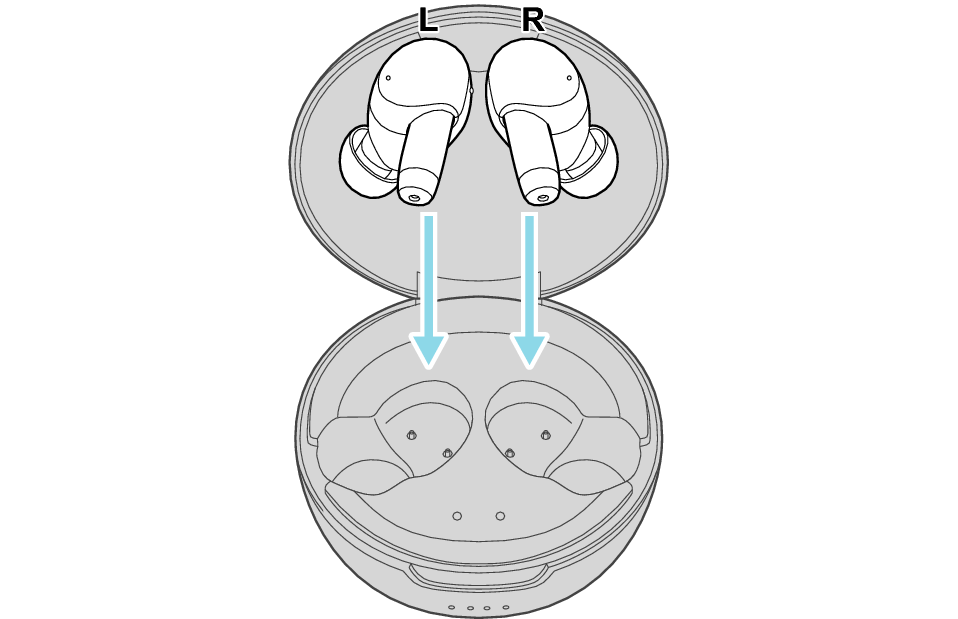
After a few seconds, the indicators for the earphones and charging case will light up.
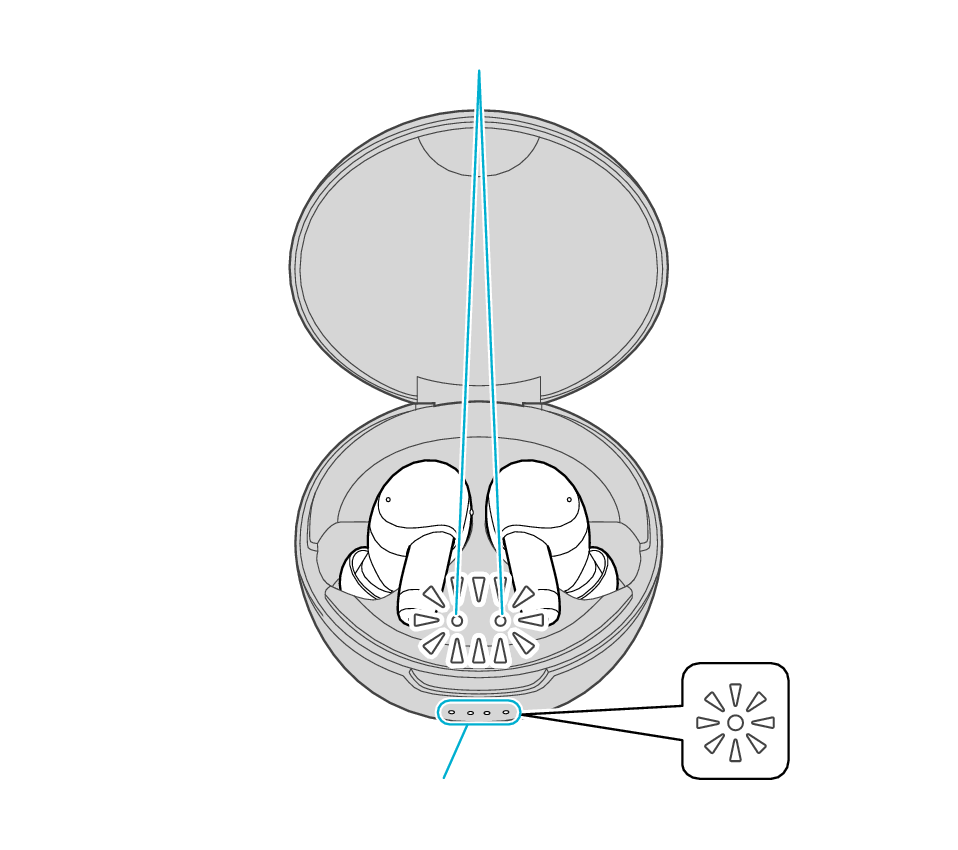
Indicators for the earphones
Indicators for the charging case
Touch sensor area
Indicators for the earphones
The indicators for the earphones start to flash quickly.
If the indicators do not flash quickly, remove both earphones from the charging case, and start over again from step 1.
The indicator will stop flashing after 10 seconds. Touch and hold the touch sensor for about 1 second while it is flashing.
Touch sensor area
Indicators for the earphones
The L and R earphones are automatically connected inside the charging case.
After initialization is complete, the L and R indicators for the earphones will flash twice slowly.
After initialization is complete, charging of the earphones will resume, and the indicators for the earphones will turn on or go off.
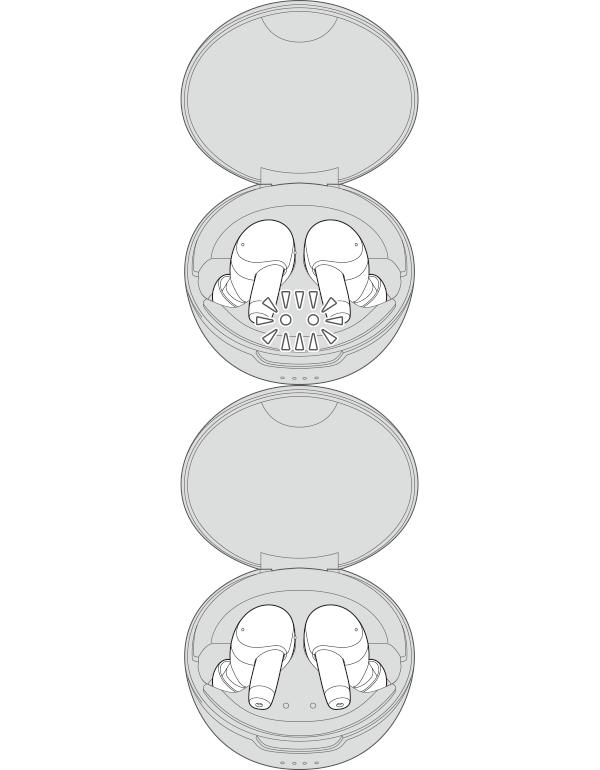
Connecting to the first device
-
Insert the earphones into the charging case
-
Touch and hold the touch sensor area of the L and R earphones for about five seconds
The indicators for the earphones light up.
Indicators for the earphones
Touch sensor area
Indicators for the earphones
The indicators for the earphones start to flash quickly.
If the indicators for the earphones do not flash quickly, close the lid of the charging case, open it again, followed by tapping and holding the touch sensor on both the L (left) and R (right) earphones for about 5 seconds.
If a pop-up display appears on your Android device, perform connection by following the instructions on the display.
In other cases, try the steps below.
Turn on the BLUETOOTH connection setting of the device and select this unit
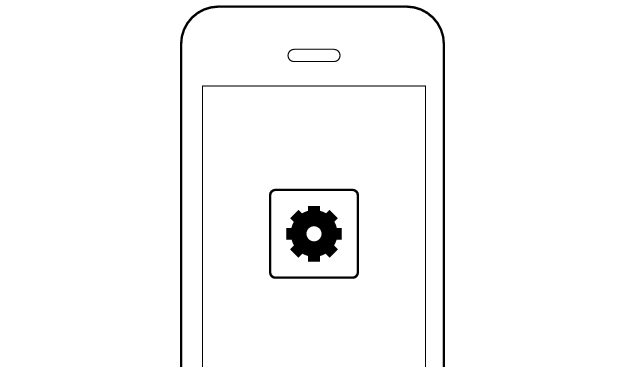
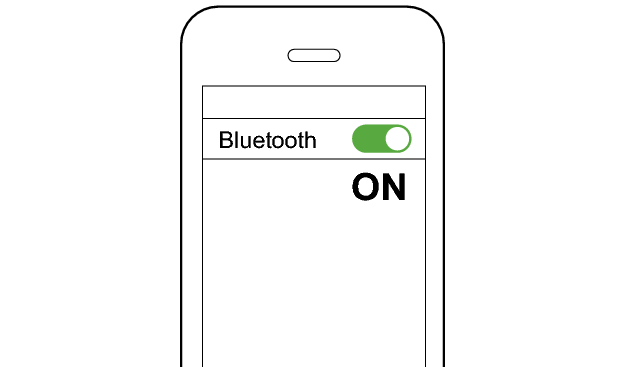
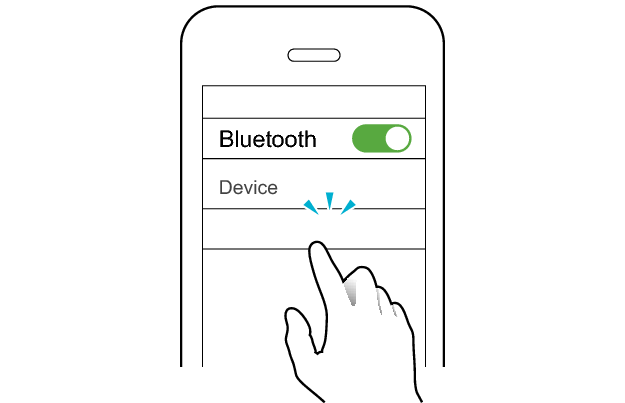
JVC WOOD masterpiece
Check the screen on the Bluetooth device to confirm whether connection is successful.
When connection is established, the L and R indicators for the earphones will start to flash slowly.
Once connection has been established, removing the earphones from the charging case turns on the power and they can now be used for listening to music.
Connecting to the second device
-
Set the Bluetooth setting of the first device to “OFF”.
-
Place the earphones in the charging case.
-
Touch and hold the touch sensor on both the L (left) and R (right) earphones for about 5 seconds.
-
Pair the System with the second BLUETOOTH device.
-
Take out both earphones from the charging case and wear them in your ears.
-
Set the Bluetooth setting of the first device to “On”. If it is not reconnected automatically, select this earphone unit again.
First Device
The indicators for the earphones light up.
Indicators for the earphones
Touch sensor area
Indicators for the earphones
Both L and R indicators for the earphones flash quickly and repeatedly, indicating that they are in the pairing mode.
If the indicators for the earphones do not flash quickly, close the lid of the charging case, open it again, followed by tapping and holding the touch sensor on both the L (left) and R (right) earphones for about 5 seconds.
Second Device
JVC WOOD masterpiece
When connection is established, the L and R indicators for the earphones will start to flash slowly.
First Device
When the connection with two devices is complete, you will hear “Device Two Connected”.
Check whether “Connected already” is displayed on both devices.
First Device
Second Device
JVC WOOD masterpiece
JVC WOOD masterpiece
Connected already
Connected already