Sound is interrupted

If there are frequent sound interruptions, following the steps below may solve the problem.
Follow the steps to check whether there is any abnormality with the sound output.
If the power of the earphones is on, turn it off temporarily
With the earphones worn on the ears, touch and hold the touch sensor area of the L and R earphones for about five seconds. “Power Off” Is output from the audio guidance and the power turns off.
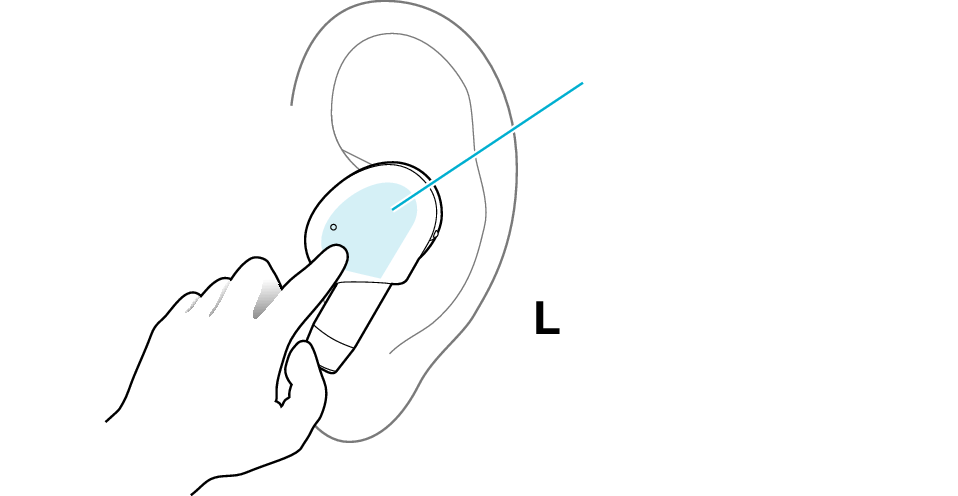
Touch sensor area
Insert the earphones into the charging case. Check that charging has started, and then remove from the charging case.
Select the state after checking
Thank you for using Troubleshooting Guide.
Communication with the device may sometimes be unstable.
Changing the position or orientation of the device
If there is an obstructing object (our body, metal, wall, etc.) between the device and the earphones, use the device upon moving it to a position that allows for most stable communication, such as by inserting it into the rear pocket instead of the front pocket.
Also, orientation of the device may have a significant impact on communication.
Use the connected device in a position or orientation that allows for the most stable communication.
Select the state after checking
Thank you for using Troubleshooting Guide.
The audio may be interrupted while in the low latency mode.
Switching to Standard Mode
Tap the touch sensor area on the L side of the earphones quickly for 5 times
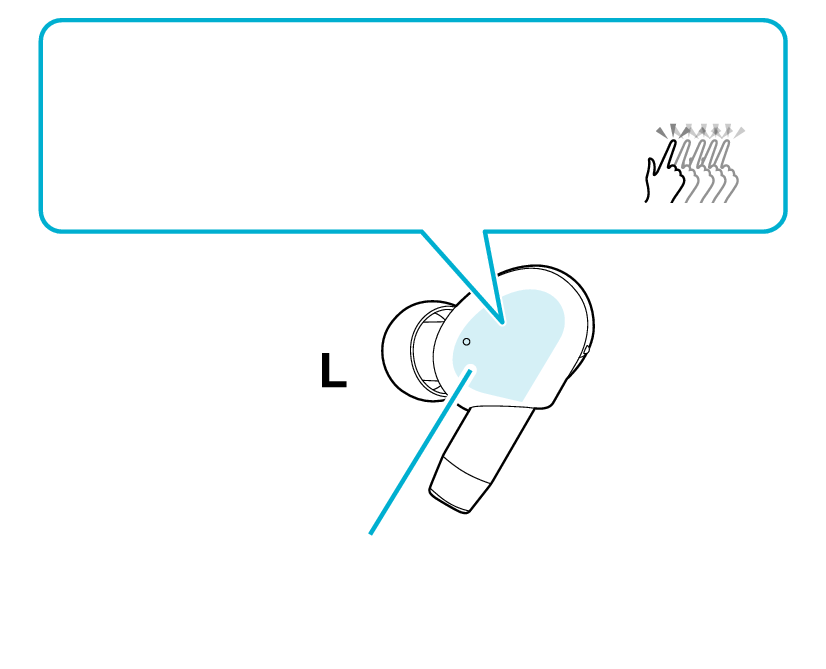
Switch between low latency and standard modes
5x
Touch sensor area
Switches between low latency and standard modes.
Audio guidance can be heard when you are switching between the low latency and standard modes.
Select the state after checking
Thank you for using Troubleshooting Guide.
Operation of the device may sometimes be unstable.
Reducing the number of apps running on the device
Multiple apps that are running concurrently on devices such as a smartphone might slow down the apps and cause sound interruptions.
Select the state after checking
Thank you for using Troubleshooting Guide.
The battery level of the earphones might be running low.
Sound tends to be interrupted when the remaining battery level is low.
If there are frequent sound interruptions, charge the earphones.
Charging the earphones
-
Charge the charging case
-
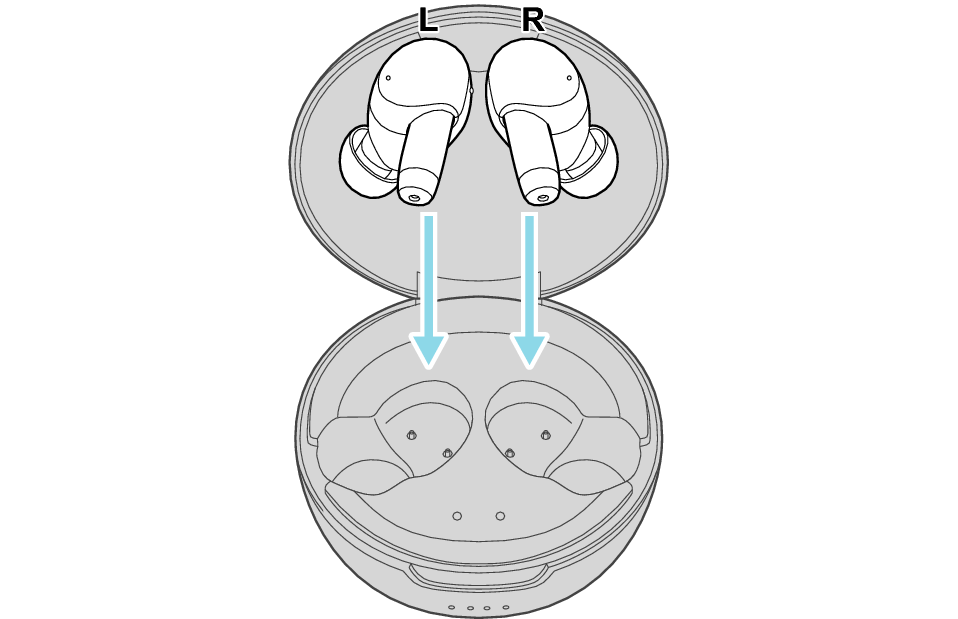
Insert the earphones into the charging case
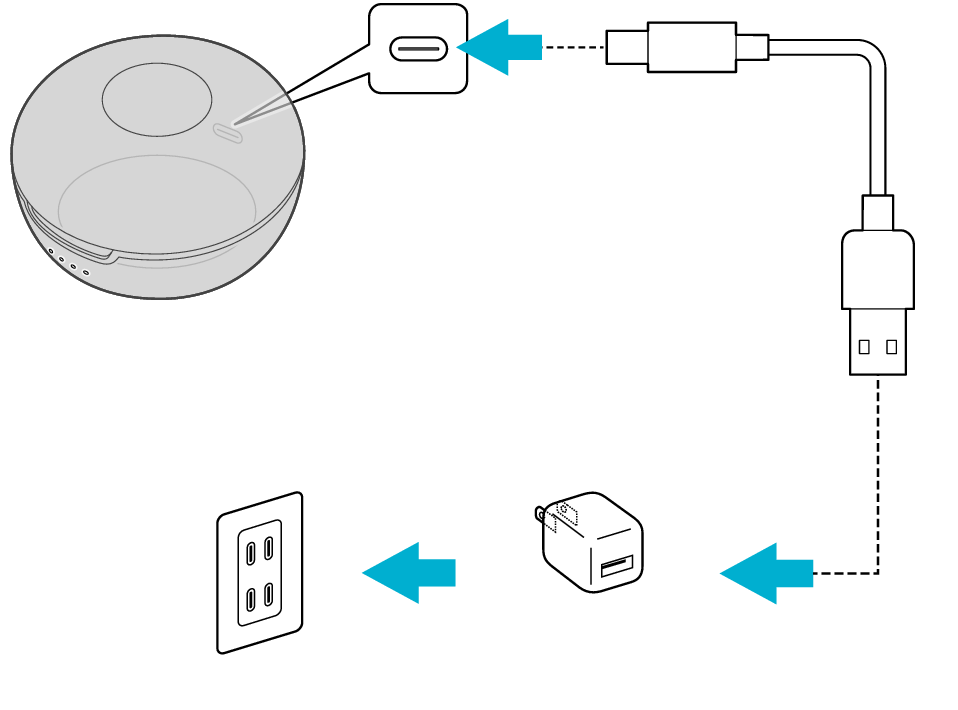
5V TYPE
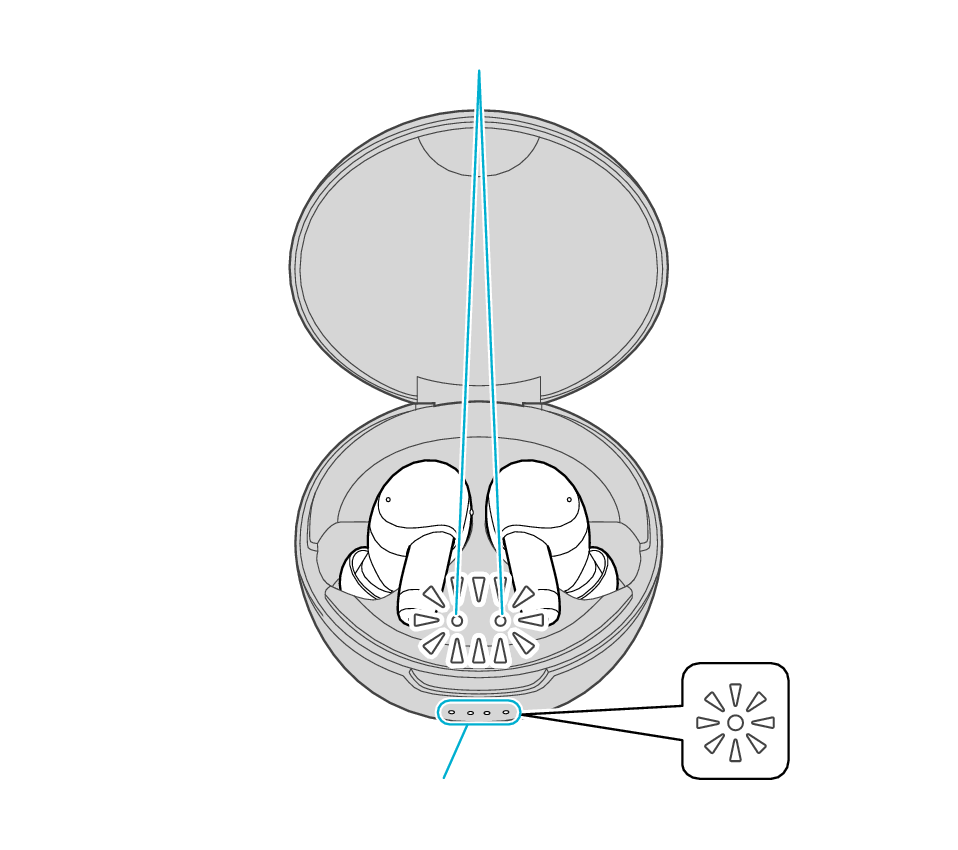
Indicators for the earphones
Indicators for the charging case
Make sure to close the lid of the charging case.
During charging of the charging case, the indicators for the charging case will remain lit or flashing. When charging is complete, all indicators go out.
The indicators for the earphones will remain lit while charging of the earphones is in progress. When charging is complete, the light of indicators goes out.
When charging the earphones or charging case that have not been used for a long period of time, it might take some time for the indicators to light up. Wait for the indicators to light up.
Click here if the indicators do not light up or start flashing >>
Select the state after checking
Thank you for using Troubleshooting Guide.
Communication of the device may sometimes be unstable depending on the environment.
Using the earphones at a different location
Sound may be interrupted if the earphones are subject to radio interference at crowded areas or beside microwave ovens and other electronic equipment that emits radio waves.
Also, radio waves are transmitted and received both directly and via reflections from walls and other objects during Bluetooth® communication, so sound may also be interrupted even at places with good visibility and no obstructing objects.
This is a characteristic of Bluetooth® communication and is not a malfunction.
If there are frequent sound interruptions, use the earphones at a different location.
Select the state after checking
Thank you for using Troubleshooting Guide.
Initializing the earphones and re-establishing the connection may help to solve the problem.
Follow the steps below to check whether there is any abnormality with the sound output.
Initializing
First of all, go to the Bluetooth settings of the device to be connected and delete the information of this unit that is registered on it.
Charge the charging case beforehand.
Remove the earphones once if they are inserted into the charging case.
Follow the steps below to initialize the settings of both the L and R earphones at the same time.
-
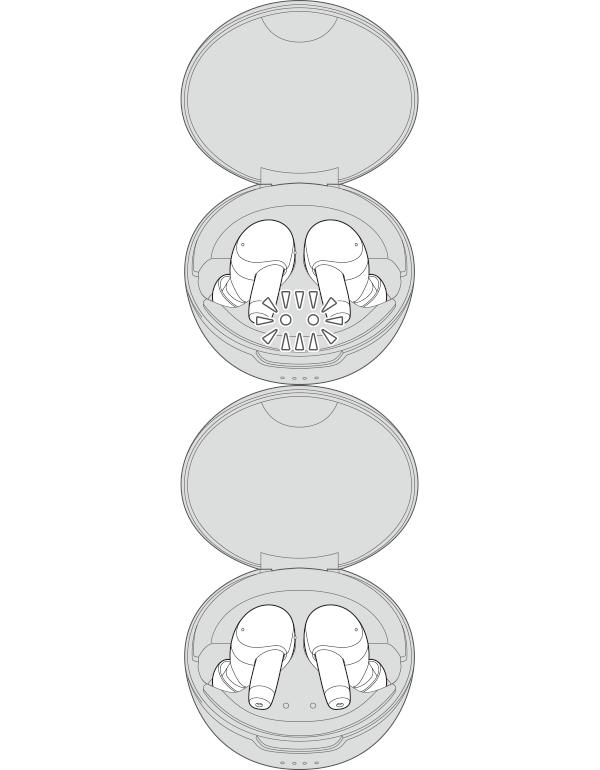
Insert the earphones into the charging case
-
When the indicators for the earphones are lit, tap the touch sensor area on both L and R earphones at the same time 6 times in a row.
-
While the indicator is flashing, touch and hold the touch sensor area on both L and R earphones at the same time for about 1 second.
After a few seconds, the indicators for the earphones and charging case will light up.
Indicators for the earphones
Indicators for the charging case
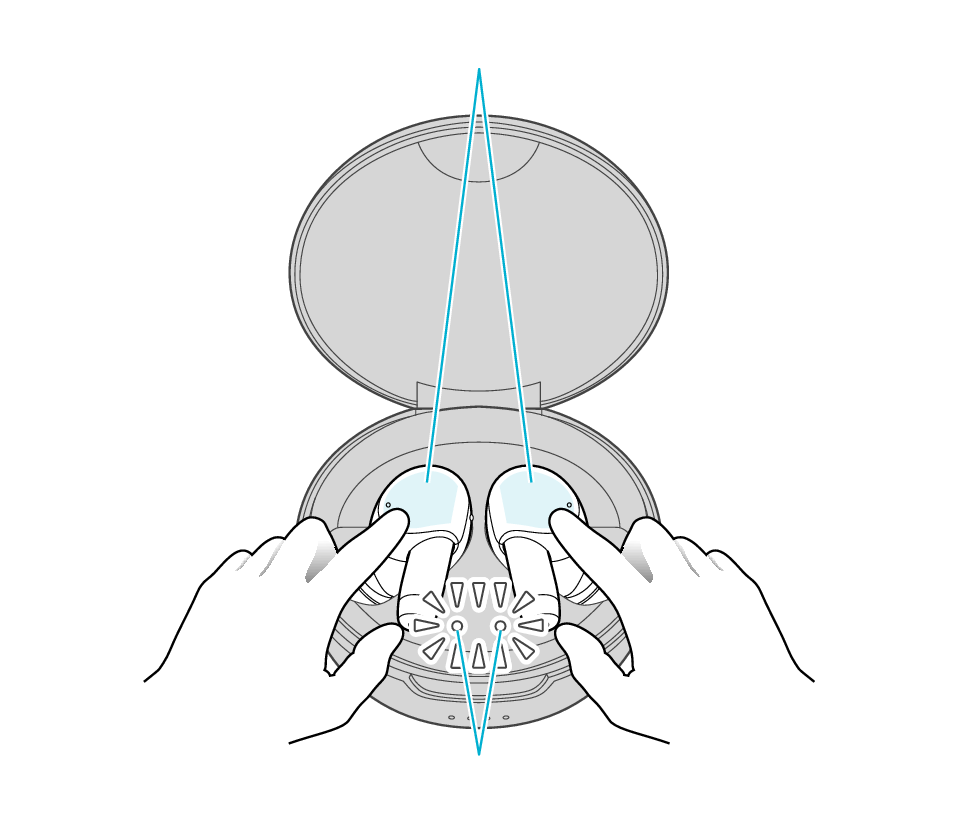
Touch sensor area
Indicators for the earphones
The indicators for the earphones start to flash quickly.
If the indicators do not flash quickly, remove both earphones from the charging case, and start over again from step 1.
The indicator will stop flashing after 10 seconds. Touch and hold the touch sensor for about 1 second while it is flashing.
Touch sensor area
Indicators for the earphones
The L and R earphones are automatically connected inside the charging case.
After initialization is complete, the L and R indicators for the earphones will flash twice slowly.
After initialization is complete, charging of the earphones will resume, and the indicators for the earphones will turn on or go off.
Connecting to a Device
-
Insert the earphones into the charging case
-
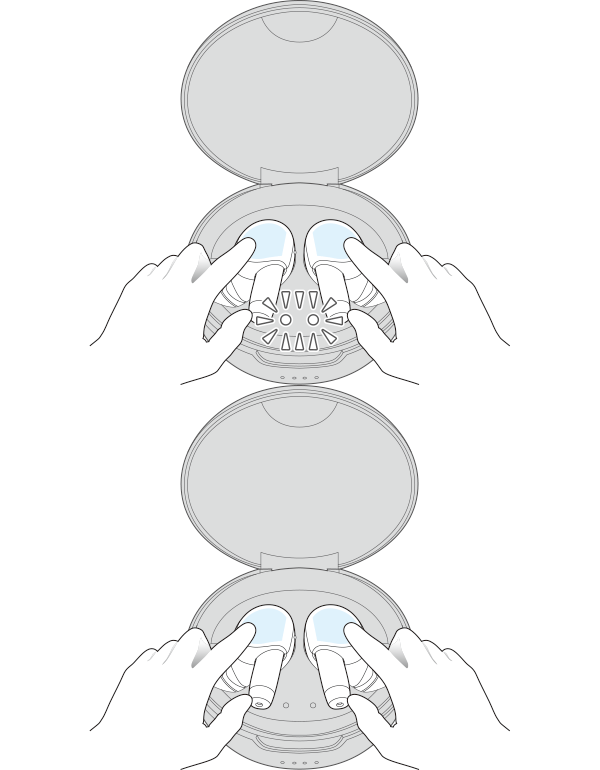
Touch and hold the touch sensor area of the L and R earphones for about five seconds
The indicators for the earphones light up.
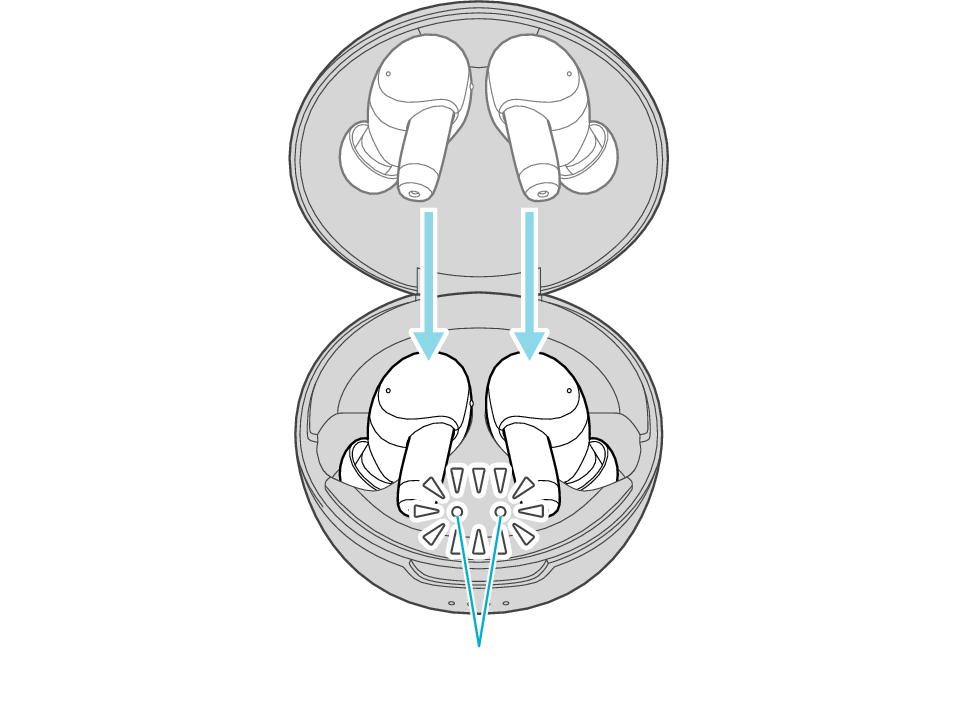
Indicators for the earphones
Touch sensor area
Indicators for the earphones
The indicators for the earphones start to flash quickly.
If the indicators for the earphones do not flash quickly, close the lid of the charging case, open it again, followed by tapping and holding the touch sensor on both the L (left) and R (right) earphones for about 5 seconds.
If a pop-up display appears on your Android device, perform connection by following the instructions on the display.
In other cases, try the steps below.
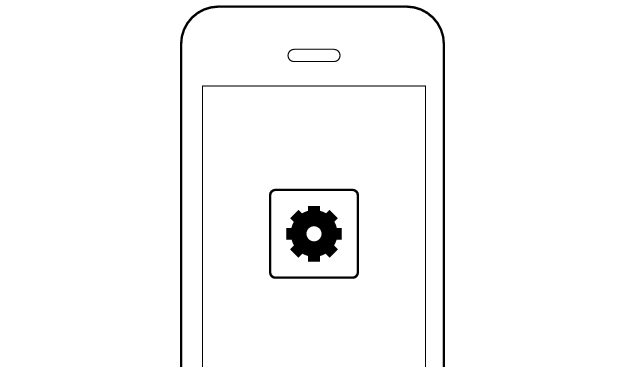
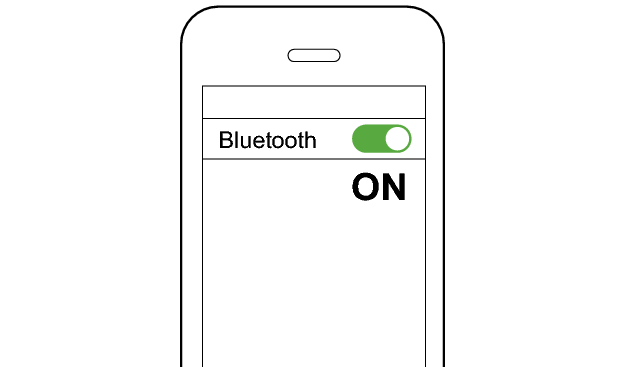
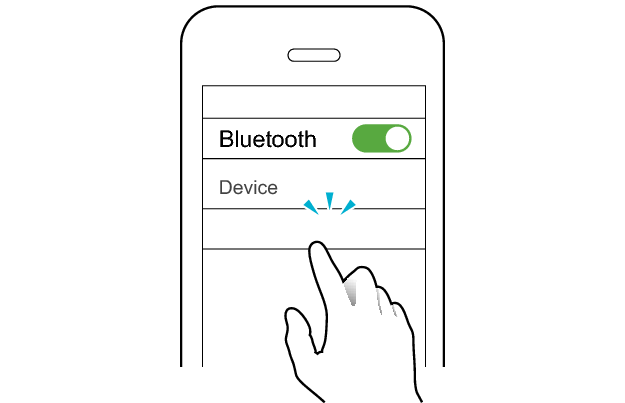
Turn on the BLUETOOTH connection setting of the device and select this unit
JVC WOOD masterpiece
Check the screen on the Bluetooth device to confirm whether connection is successful.
When connection is established, the L and R indicators for the earphones will start to flash slowly.
Once connection has been established, removing the earphones from the charging case turns on the power and they can now be used for listening to music.
Apps and Volume Control on the Connected Device
-
Open an app and play
-
Adjust the volume