
After recording for a specified duration, this unit automatically plays back the scene and then repeats the recording process and the playback process over and over again. This can be used to check a sports form or dance form.
-

- Recording
-
Recording at a Fixed Interval and Playing Back Repeatedly
Recording at a Fixed Interval and Playing Back Repeatedly
The recorded scene can also be deleted automatically depending on the setting.
Open the LCD monitor.
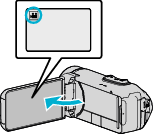
Check if the recording mode is  .
.
If the mode is  still image, tap on the recording screen to display the mode switching screen.
Tap to switch the mode to video.
Tap “MENU”.
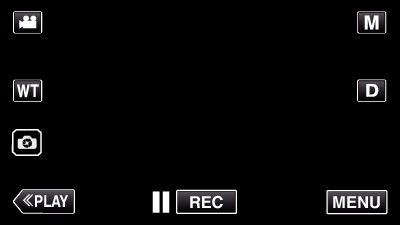
The top menu appears.
Tap “RECORD SETTING”.
_UJDCILympypskr.png)
Tap “SELF-CHECK REC/PLAY”.
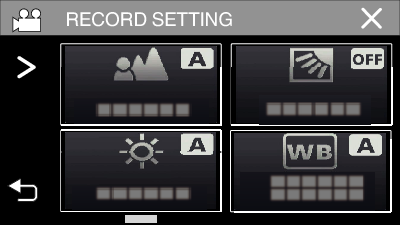
If the icon is not displayed on the screen, tap  to scroll the screen.
Tap  to exit the menu.
Tap  to return to the previous screen.
Tap “SET”.


|
RECORDING TIME |
10 to 40 seconds (Can be set in 5-second interval.) |
|
AUTO DELETE |
Off: The recorded video is retained. |
|
On: The recorded video is deleted. |
Tap to return to the previous screen.
This operation is not necessary if you do not intend to change the current setting displayed.
Tap “START”.
There is a 5 second countdown before recording starts at the beginning of the operation only.

When the recording starts, the color of the number changes and the remaining number of seconds for recording is displayed.

When recording is complete, playback starts automatically.

When playback ends, the next recording starts automatically.
Tap “STOP” to exit “SELF-CHECK REC/PLAY”.
Memo
The START/STOP button cannot be used during the “SELF-CHECK REC/PLAY” operation.