
Displays the MAC address of the camera.
-
- Using Wi-Fi
- Changing the Settings
-
Checking the MAC Address of this Camera
- Wi-Fi Capabilities
- Operating Environment
- Precautions on Using Wi-Fi
- Image Monitoring via Direct Connection (DIRECT MONITORING)
- Recording the Location Information
- Image Monitoring via an Access Point at Home (INDOOR MONITORING)
- Image Monitoring via the Internet (OUTDOOR MONITORING)
- Changing the Settings
- Registering Access Point Using Wi-Fi Protected Setup (WPS)
- Registering Access Point Using WPS PIN
- Checking the MAC Address of this Camera
- Configuring Wi-Fi Connection with LCD Monitor Closed
- Initializing the Wi-Fi Settings
- Using Smartphone Applications
- Troubleshooting
- Wi-Fi Specifications
Checking the MAC Address of this Camera
Tap “MENU”.
(Operation on this camera)
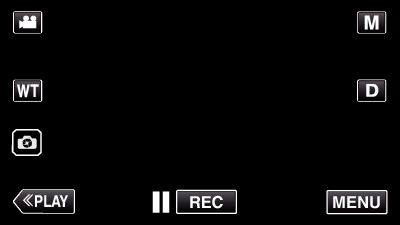
The top menu appears.
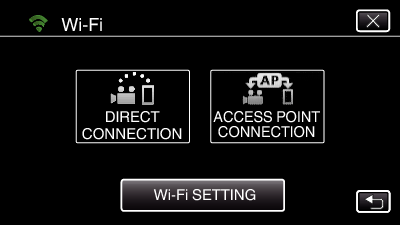
Tap the “Wi-Fi” (
) icon.
(Operation on this camera)
_UJDCILympypskr.png)
Tap “Wi-Fi SETTING”.
(Operation on this camera)
Tap “MAC ADDRESS”.
(Operation on this camera)
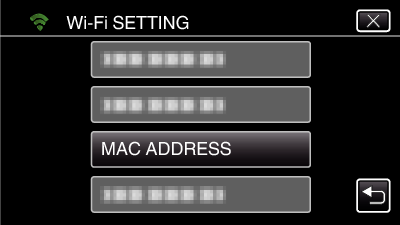
The MAC address of the camera appears.
(The above shows the address during direct connection, while the below shows the MAC address when connected to an access point.)
After checking, tap “SET”.
