
You can change the name, priority level, and face information that are registered.
-

- Recording
- Registering Human Face Personal Authentication Information
-
Editing the Registered Face Information
Editing the Registered Face Information
Tap “MENU”.
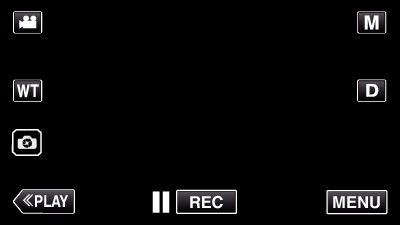
The top menu appears.
Tap “SETUP”.
_UJDCILympypskr.png)
Tap “FACE REGISTRATION”.

If the function is not available on the screen, tap “  ” to scroll the screen.
Tap  to exit the menu.
Tap  to return to the previous screen.
Tap “EDIT”.

Tap the person to edit.

Tap the item to edit.

If you select “RECORD AGAIN”, proceed to step 6 in “ Registering Human Face Personal Authentication Information ”.
If you select “CHANGE NAME”, proceed to step 12 in “ Registering Human Face Personal Authentication Information ”.
If you select “CHANGE ORDER OF PRIORITY”, proceed to step 13 in “ Registering Human Face Personal Authentication Information ”.
Canceling (Deleting) the Registered Face Information
You can cancel (delete) the face information that is registered.
Tap “MENU”.
The top menu appears.
Tap “SETUP”.
Tap “FACE REGISTRATION”.
If the function is not available on the screen, tap “ ” to scroll the screen.
Tap to exit the menu.
Tap to return to the previous screen.
Tap “CANCEL”.

Tap the person to cancel registration of.

 appears on the selected person.
To remove from a person, tap on the person again.
Tap “SET”.

Tap “YES”.

Tap “YES” to delete the face information of the selected person.
Tap “NO” to return to the previous screen.
Tap “OK” when the deletion complete screen appears.