
> Using the Different Features (Using the App) > Listening to music
Listening to music
Identify the L and R sides of the earphones and put them on correctly.
There is a semicircle raised bump on the L (left) side.
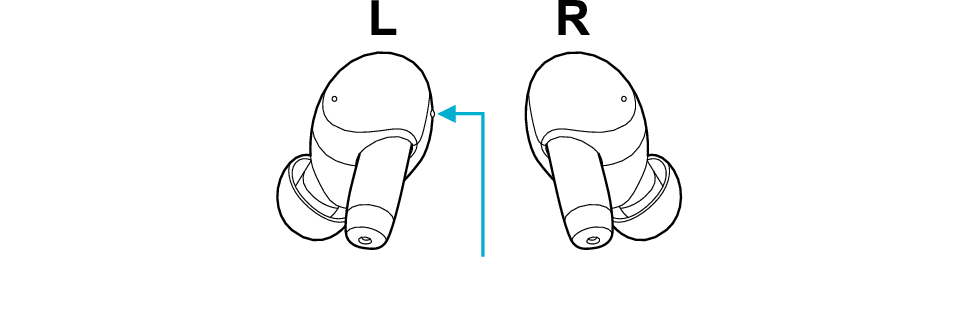
Left: Bump
Hold the earphones as illustrated in the diagram so as not to touch the touch sensor areas, and fit them into your ears.
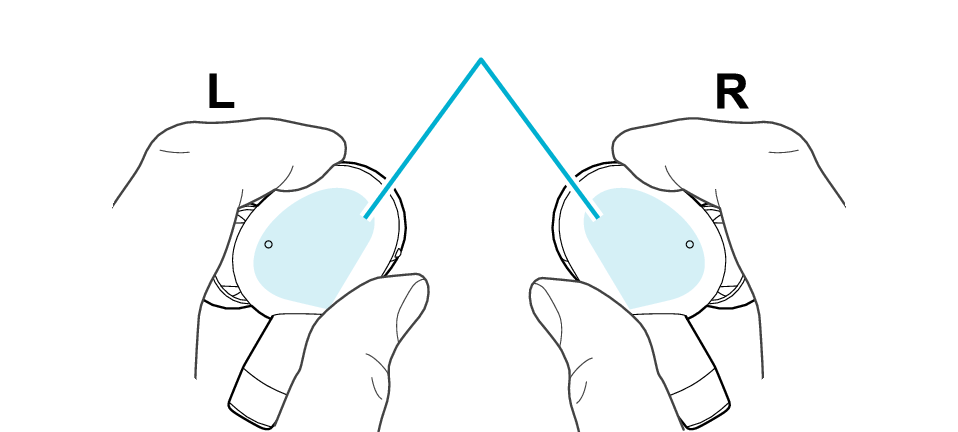
Touch sensor area
Rotate the earphones to adjust them to the most comfortable angle.
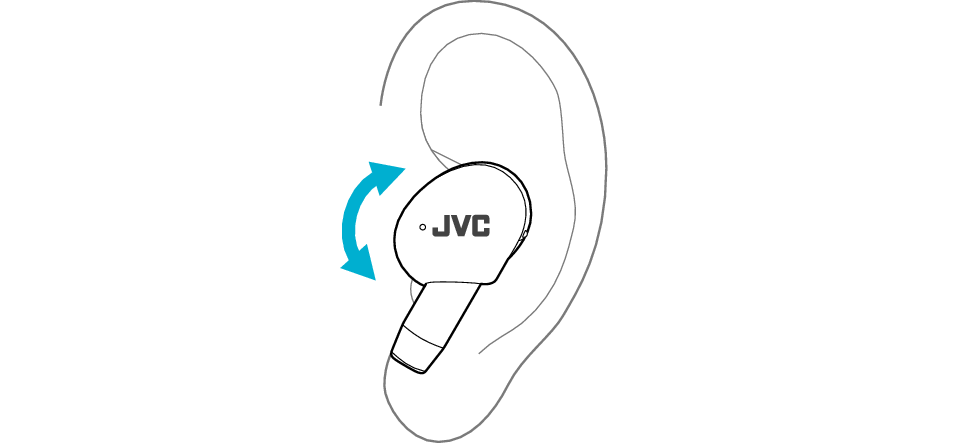
Adjusting the Ear Piece Position (Including Ear Piece Replacement)
-
Flip the ear pieces as shown in the illustration below, and align the ▽ marks on the earphones and ear pieces.
-
Flip back the ear pieces as illustrated in the diagram.
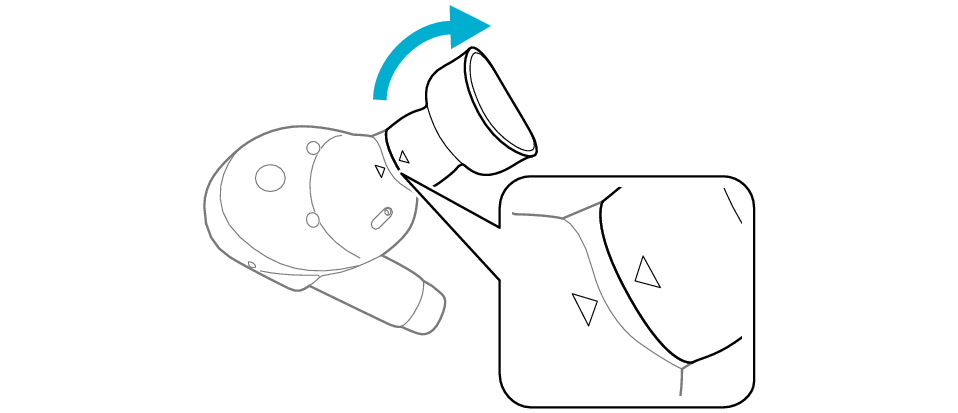

The medium-size silicone ear pieces are attached when purchased.
To enjoy good sound quality, choose a set of earpieces with a size that fits snugly into your ears.
Using an ear piece that is not of the right size or not aligned properly can result in a lack of bass or reduction of the noise canceling effect.
Check that the ear piece is securely attached as shown in the figure.
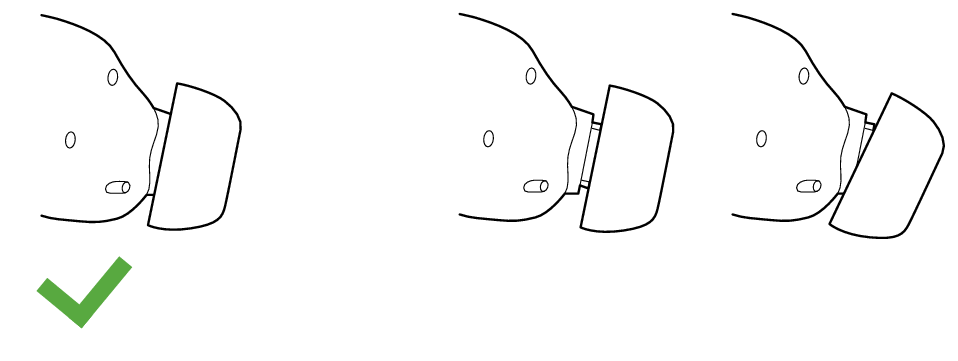
Correct
Wrong
If the ear piece is not securely attached, it may slipped off when in use and remain in your ear. If the ear piece remains in your ear, be careful not to push it further into your ear.
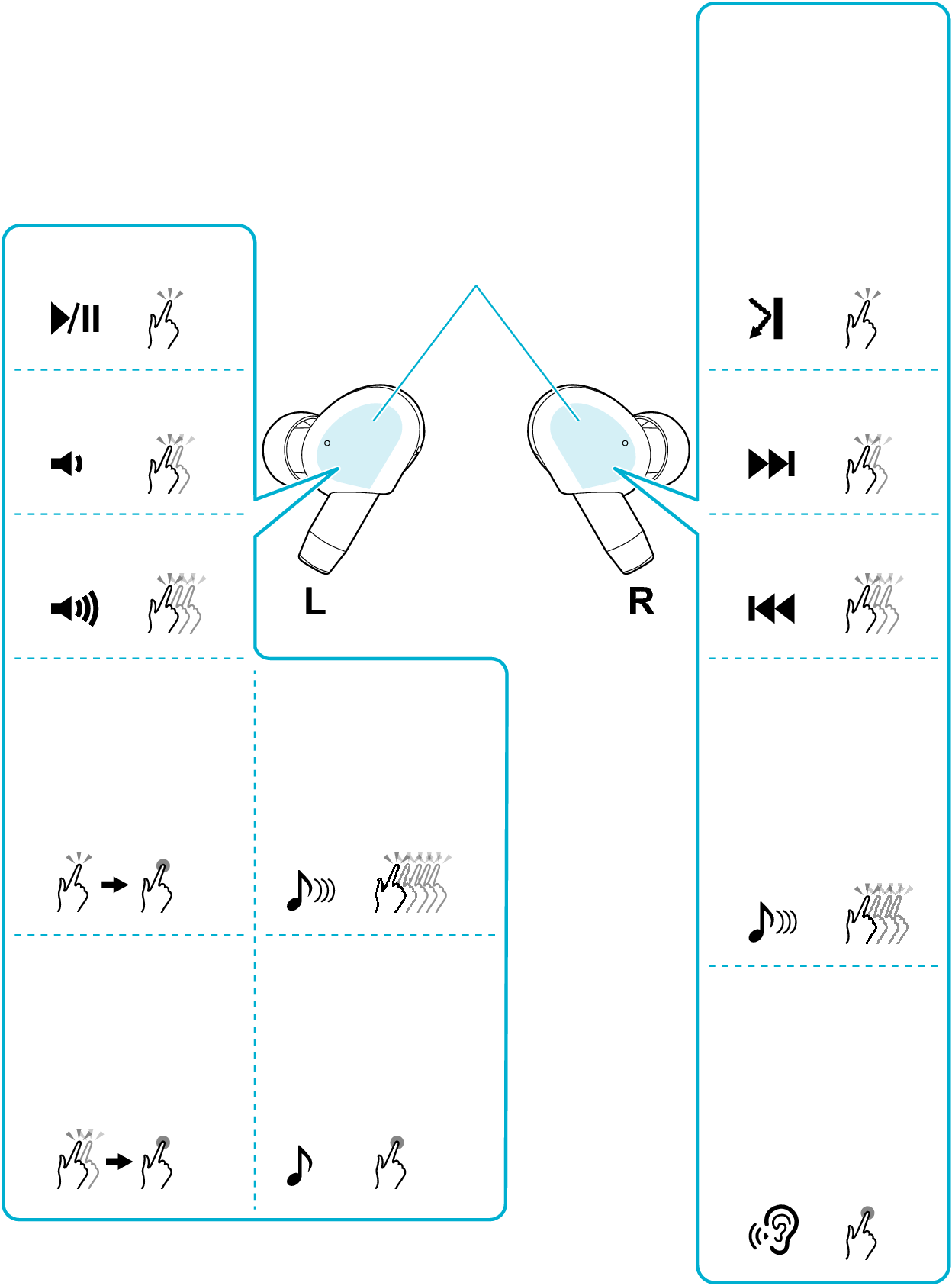
Launch the music player app on the BLUETOOTH device connected, to start playback.
1x
1x
2x
2x
3x
3x
4x
5x
1second
1second
Touch sensor area
Switching between Noise Canceling/Ambient Sound Functions (without lowering the music volume)
Switching the latency mode
Switching the sound mode
Switching on/off the spatial audio
Switching on/off the Touch & Talk function (lower the volume of the music)
Lowering the volume continuously
Raising the volume continuously
Tap once, followed by tapping and holding
Tap twice, followed by tapping and holding
Play/Pause ( )
)
Tap the touch sensor area on the L earphone once quickly.
Volume adjustment ( /
/ )
)
To raise the volume, tap the touch sensor area on the L earphone 3 times quickly during playback.
To lower the volume, tap the touch sensor area on the L earphone twice quickly during playback.
To continue raising the volume, tap the touch sensor area on the L earphone twice quickly, followed by tapping and holding.
To continue lowering the volume, tap the touch sensor area on the L earphone once quickly, followed by tapping and holding.
Skip to the next track ( )
)
During playback, tap the touch sensor area on the R earphone twice quickly.
Skip to the previous track or beginning of the current track ( )
)
During playback tap the touch sensor area on the R earphone 3 times quickly.
Using the Noise Canceling Function/Using the Ambient Sound Function
Tap the touch sensor area on the R earphone once quickly.
Each quick tap will change the function as follows.

Noise canceling function
Ambient Sound Function
You will hear an audio guidance when the function is switched.
The noise canceling function is set to on when purchased.
Selected function can be switched by changing the setting of “Switching settings for control keys” in the app. You can choose an option from Noise Canceling, Wind Cut, Ambient Sound and Off.
Using the noise canceling function mainly helps to reduce ambient noises such as noise in a vehicle and noise from air conditioners in a room.
Using the ambient sound function allows you to hear your surrounding sounds.
Switching the sound mode
Touch the touch sensor area of the L earphone for about 1 second, and release your finger when you hear a beep sound.
Each time you tap the earphone for about 1 second and release your finger, the sound mode will switch alternately as follows.
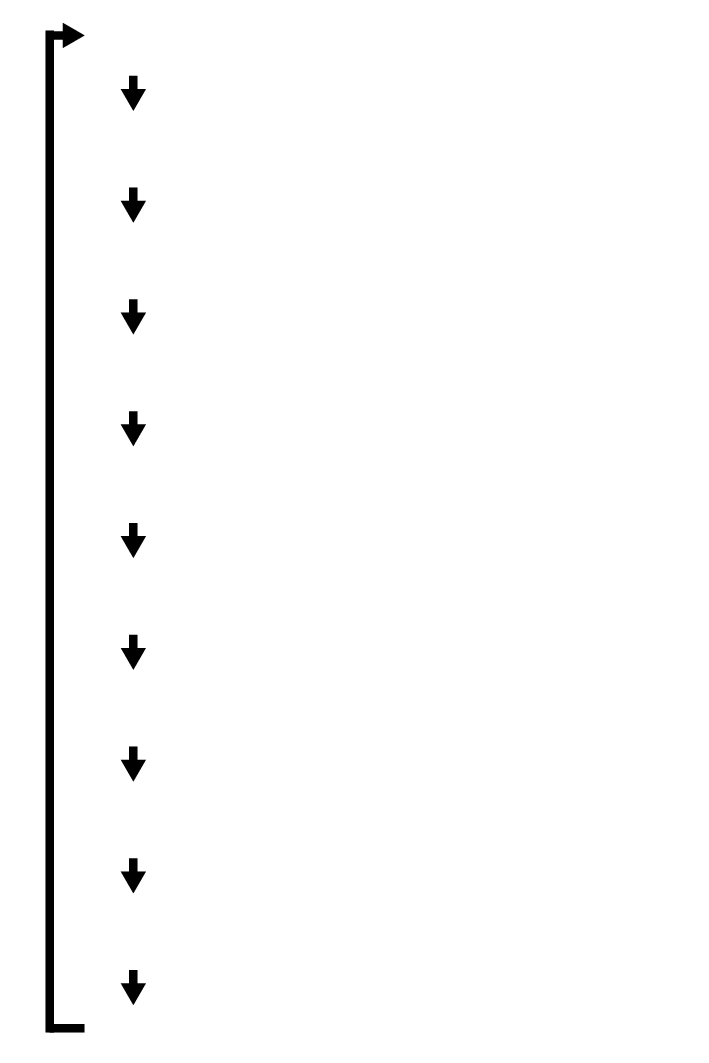
FLAT
BASS
CLEAR
DYNAMIC
VOCAL
PROFESSIONAL 1
PROFESSIONAL 2
PROFESSIONAL 3
PROFESSIONAL 4
PROFESSIONAL 5
You will hear an audio guidance when the function is switched.
Switching spatial audio to on/off
Tap the touch sensor area on the R earphone 4 times quickly.
This feature delivers natural, immersive and three-dimensional sound with a sense of depth.
Switching the Latency Mode
Tap the touch sensor area on the L earphone 5 times quickly.
When you feel that there is a time lag between the video images and audio sound while viewing a video, using the low latency mode can help to reduce the lag.
“Low Latency Mode” can be heard from the audio guidance when you switch to the low latency mode. “Normal Mode” can be heard from the audio guidance when you switch to the normal mode.
Switching on/off the Touch & Talk function
Touch the touch sensor area of the R earphone for about 1 second, and release your finger when you hear a beep sound.
When using the Touch & Talk function, the music playback volume is lowered, and the built-in microphone picks up external sounds and plays them through the earphones, making it easier to hear the surrounding sounds.
When you use the Touch & Talk function, the music will return to its original volume when the you wish to stop listening. If you have raised the volume while listening to surrounding sounds, take note that the volume will increase when you return to music playback.
The Ambient Sound function and the Touch & Talk function capture surrounding sound through the built-in microphone. When you touch the microphone hole, you can hear a noise. Take note not to touch or cover the microphone hole accidentally when operating the earphone.

Microphone hole
Noise may occur if the earphones are placed in a charging case with no remaining battery while the ambient sound feature is on. Charge the charging case.
The noise canceling function is effective for low-pitched sounds such as noise in a vehicle and noise from air conditioners in a room but less effective for relatively high-pitched sounds such as announcements, conversations and bells in vehicles.
The audio that is currently playing may be interrupted when you are using the low latency mode. By switching to “Stabilized Connection Mode” in the app, audio interruptions are less likely to occur.
When the remaining battery power becomes low, you will hear an audio guidance sound which informs you that the remaining battery level is low.
When the remaining battery power becomes low, the power will turn off automatically from the earphone that had ran out of battery.
When watching movies with the earphones, a slight time lag may occur in the audio output.
We do not guarantee all operations of the BLUETOOTH device.
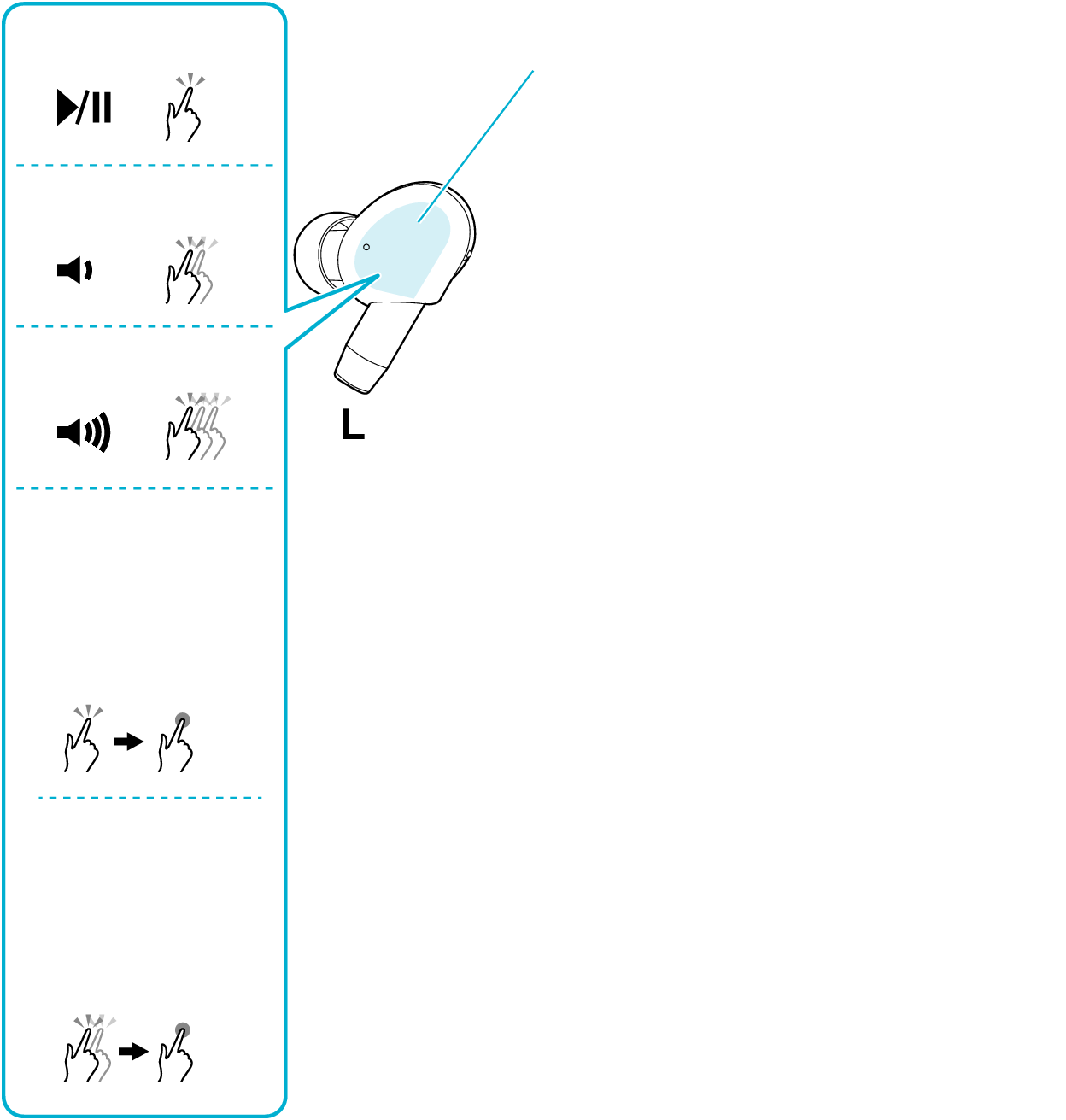
Launch the music player app on the BLUETOOTH device connected, to start playback.
The L earphone is used in the illustration.
1x
2x
3x
Touch sensor area
Lowering the volume continuously
Raising the volume continuously
Tap once, followed by tapping and holding
Tap twice, followed by tapping and holding
Play/Pause ()
Tap the touch sensor area once quickly.
Volume adjustment (/)
To raise the volume, tap touch sensor area 3 times quickly during playback.
To lower the volume, tap touch sensor area twice quickly during playback.
To continue raising the volume, tap touch sensor area twice quickly, followed by tapping and holding.
To continue lowering the volume, tap touch sensor area once quickly, followed by tapping and holding.
When the remaining battery power becomes low, you will hear a notification via the audio guidance.
When the remaining battery power becomes low, the power will turn off automatically from the earphone.
When watching movies with the earphones, a slight time lag may occur in the audio output.
We do not guarantee all operations of the BLUETOOTH device.