
 Installation
TOP
Collectively manages the setting values of “Lens Control”, “Pixel Adjust”, “Mask”, “Anamorphic” and “Screen Adjust”.
The lens position may be shifted slightly with respect to the position that was saved.
Mode Select
For selecting the group to save and retrieve the setting values.
Setting values: Mode 1 to Mode 10
The name of the setting value can be changed using “Name Edit”.
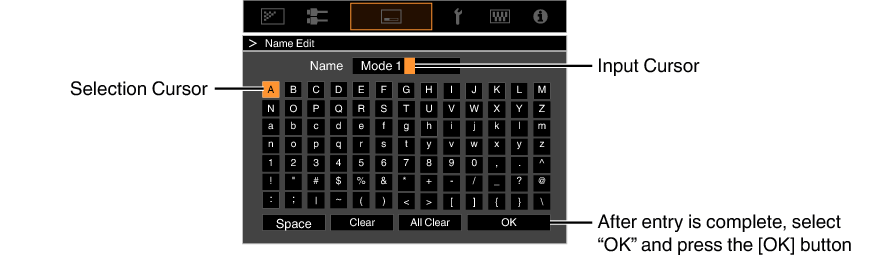
Name Edit
For editing the name of Installation Mode.
Characters that are usable include alphabets (upper or lower case), numeric characters, and symbols.
Enter not more than 10 characters.
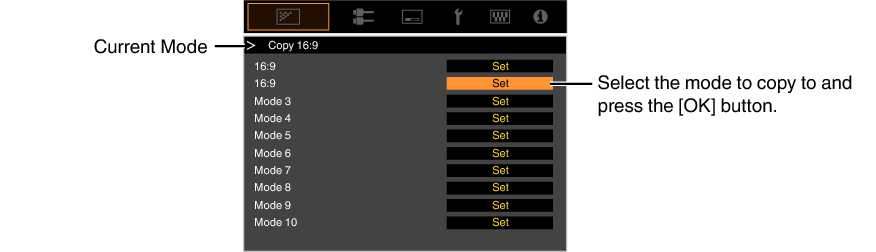
Mode Copy
For copying the setting values managed by the current Installation Mode to another mode.
Focus / Zoom / Shift
For adjusting the lens according to the projection position
Image Pattern
For setting whether to display the lens adjustment pattern.
|
Setting |
Description |
|---|---|
|
Off |
Displays external signals, and does not display the lens adjustment pattern. |
|
On |
Displays the lens adjustment pattern. |
Lock
For setting whether to lock or unlock the lens.
Setting to “On” to lock the lens allows you to preserve the adjustment status of the lens.
|
Setting |
Description |
|---|---|
|
Off |
Does not lock the lens. |
|
On |
Locks the lens to prevent any erroneous operation on the adjustments. Even when “On”, the lens will be in the mode selected by “Installation Mode”. |
Lens Center
Returns the lens position to the center.
For correcting the phase shifting between each RGB color by adjusting the pixel.
Adjust
For setting the adjustment feature to On or Off.
Adjust Area
|
Setting |
Description |
|---|---|
|
Whole |
Adjusts the entire image. |
|
Zone |
Enables fine adjustment of each area by dividing the screen evenly into 10 vertical and horizontal zones. |
Adjust Color
For selecting the color to adjust (“Red” or “Blue”).
Adjust Pattern
|
Setting |
Description |
|---|---|
|
Off |
Displays the external signals without displaying the test pattern for adjustment. |
|
On |
Displays the test pattern for adjustment. |
Adjust Pattern Color
For setting the color of the adjustment pattern displayed during adjustment to “White” or “Yellow / Cyan”.
When “Adjust Area” is set to “Whole”, adjustment can be made by moving in units of one pixel on the screen of the color selected in “Adjust Color”.
Adjustment cannot be made when “Adjust Area” is set to “Zone”.
|
Setting |
Description |
|---|---|
|
H (Horizontal) |
Setting range: -2 (moves red/blue to the left) to +2 (moves red/blue to the right) |
|
V (Vertical) |
Setting range: -2 (moves red/blue downward) to +2 (moves red/blue upward) |
Adjust (Fine)
When “Adjust Area” is set to “Whole”, adjustment can be made by moving in units of 1/8 pixel on the screen of the color selected in “Adjust Color”.
When “Adjust Area” is set to “Zone”, the screen is divided evenly into 10 vertical and horizontal zones, and fine adjustment of each area is possible.
|
Setting |
Description |
|---|---|
|
H (Horizontal) |
Setting range: -31 (moves red/blue to the left) to +31 (moves red/blue to the right) |
|
V (Vertical) |
Setting range: -31 (moves red/blue downward) to +31 (moves red/blue upward) |
Reset
Restores all pixel adjustment data to the factory default.
For making general adjustments to slight color fringing in the horizontal/vertical directions of the video image.
The Adjustment mode is activated, and the selected adjustment pattern and Adjustment (Pixel) window are displayed.
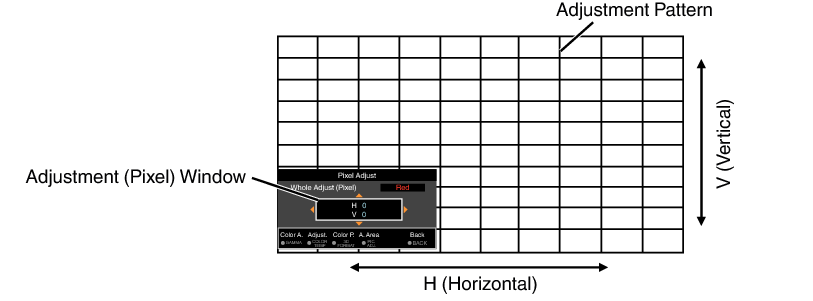


 ] keys to move and adjust the vertical and horizontal pixels of the entire zone
The adjustment setting appears at the center of the Adjustment (Pixel) window.
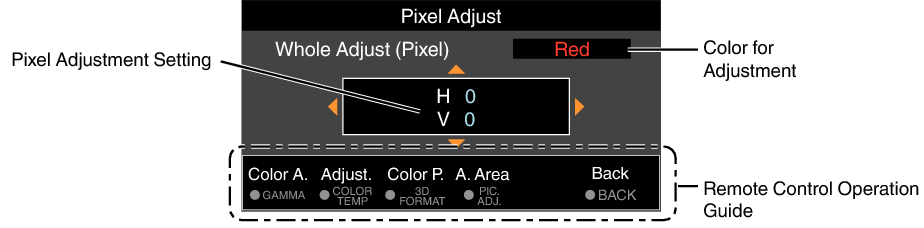
Remote Control Operation Guide
|
Button Name |
Function |
Description of Operation |
|---|---|---|
|
[GAMMA] |
Color A. |
Changes “Adjust Color”. |
|
[COLOR TEMP.] |
Adjust |
Switches between “Adjust (Pixel)” and “Adjust (Fine)”. Switches to “Adjust (Pixel)” when “Adjust Area” is set to “Zone”. |
|
[3D FORMAT] |
Color P. |
Changes “Adjust Pattern Color”. |
|
[PIC ADJ.] |
A. Area |
Switches “Adjust Area”. A zone cursor appears on the adjustment pattern when the “Zone” setting is selected. |
For making general adjustments on the misalignment of the entire screen using “Adjust (Pixel)”, followed by making fine adjustments.
The Adjustment mode is activated, and the selected adjustment pattern and Fine window are displayed.
The adjustable range may be smaller depending on the pixels being adjusted on the entire screen.
 ] keys to move and adjust the vertical and horizontal pixels of the entire zone
The adjustment setting appears at the center of the Fine window.
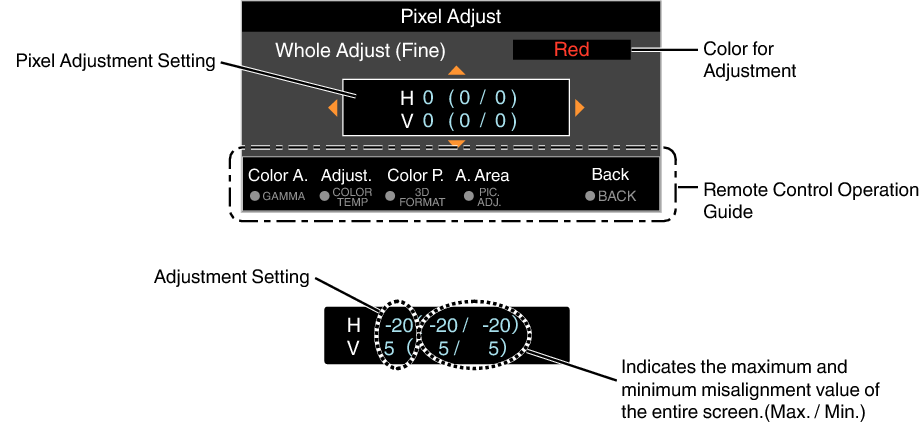
If both the maximum overall screen misalignment of H (horizontal direction) and V (vertical direction) are “31”, you cannot select a value that is larger than the displayed setting even when the adjustment setting is lower than the maximum value.
If the minimum overall screen misalignment is “-31”, you cannot select a value that is smaller than the displayed setting even when the adjustment setting is higher than the minimum value.
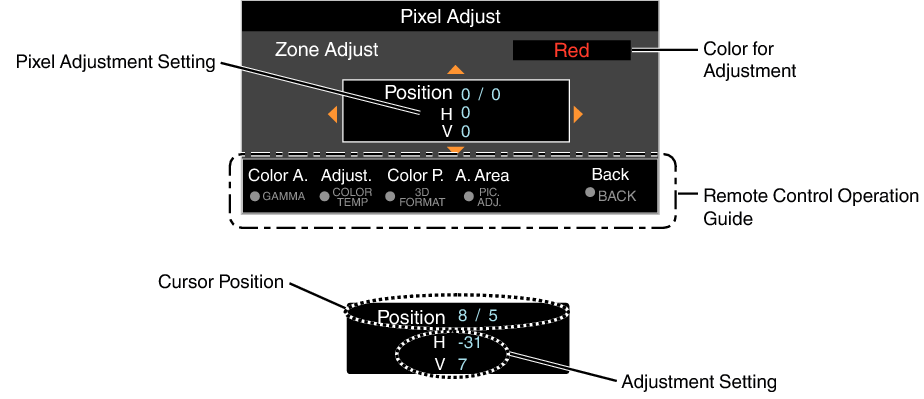
For fine-tuning misalignments on a part of the screen after adjusting the overall screen misalignment using “Adjust (Pixel)” and “Adjust (Fine)”.
The screen can be divided vertically and horizontally into 10 sections for partial adjustments to be made.
The Adjustment mode is activated, and the selected adjustment pattern and Zone Adjustment window are displayed.
The adjustable range may be smaller depending on the pixels being adjusted on the entire screen.
 ] keys to move the cursor to the point to be adjusted ] keys to move and adjust the vertical and horizontal pixels of the entire zone
The adjustment setting appears at the center of the Zone Adjustment window.
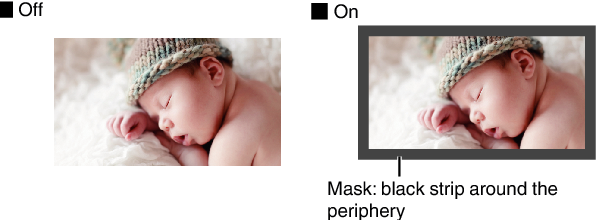
For hiding the peripheral area of the image with a mask (black strip).
|
Setting |
Description |
|---|---|
|
Off |
Not masked. |
|
On |
Hides the ranges specified in “Top”, “Bottom”, “Left” and “Right” by masking (with black strips). |
“Top” / “Bottom” / “Left” / “Right”
For specifying the ranges to hide by masking (with black strips).
Setting range: 0 to 220
Configure this setting when an anamorphic lens is used.
|
Setting |
Description |
|---|---|
|
Off |
Projects the 2.35:1 image without any changes. |
|
A |
Projects the 2.35:1 image with it stretched in the vertical direction only. |
|
B |
Projects the 16:9 image with it compressed in the horizontal direction only. |
Screen Adjust
By selecting the optimal correction mode according to the characteristics of the screen in use, corrections can be performed to reproduce natural images with balanced colors.
For setting to “Front”, “Ceiling Mount (F)”, “Rear”, or “Ceiling Mount (R)” according to the installation status of the projector.
“Front” or “Ceiling Mount (F)” is set when projector is installed in the front with respect to the screen.
“Rear” or “Ceiling Mount (R)” is set when projector is installed in the rear with respect to the screen.
For correcting any keystone distortion that occurs when the projector is installed at an angle with respect to the screen.
Vertical setting range: -16 to +16
Increasing the value changes the aspect slightly.
This function cannot be used if “Pincushion” is set.
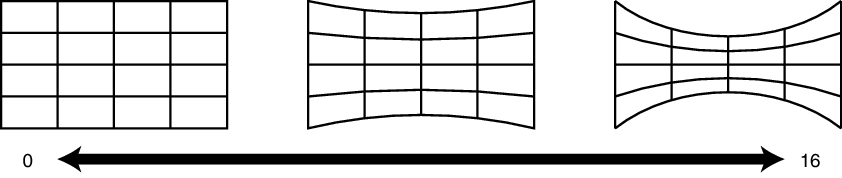
Corrects the geometric distortion that occurs when projecting on a curved screen.
Setting range: 0 to 16
When using the projector with the lens shifted in the vertical direction, the amount of distortion at the upper and lower ends may be different and the curvature distortion may not be fully corrected.
This function cannot be used if “Keystone” is set.
For setting the high altitude mode to “On” or “Off”.
Set to “On” when using the projector at a location of low atmospheric pressure (higher than 900 m above sea level).
 Picture Adjust
 Input Signal
 Display Setup
 Function
 Information